
You might have seen an audiobook you bought show up in your Kindle library and wondered — can I actually listen to this from the Kindle device?
Well, the truth is that it’s complicated. Kindle devices don’t natively have speakers, so if you just tap on the audiobook to play it, nothing will happen. But depending on your device, there are easy ways to do it.
The quick and easy answer if you’re in a rush: While Kindle ereaders don’t have speakers, you can pair Bluetooth headphones to your Kindle (newer generations) and just listen to the book. Alternatively, you can just listen to your audiobook via the Audible or Kindle phone app without any additional steps.
How to get audiobooks? While you can buy audiobooks directly from almost any provider, I found that Audible is a really good way to save up: at one monthly subscription (around $15) you can get one audiobook a month (yours to keep forever, even if you cancel) and then plenty of discounts as well. Plus, there’s usually some kind of free trial.
Considering that audiobooks are usually way more expensive than the price of that monthly subscription (not to mention with the free trials), this is a really good deal.
You can also sign up for Kindle Unlimited where some books come with an audio version as well. See my full guide on how Kindle Unlimited works, but the gist of it is that you get access to millions of ebooks for a monthly subscription. It’s a really great way to read a lot at a low price.
Which Kindle Models Support Bluetooth Audio?
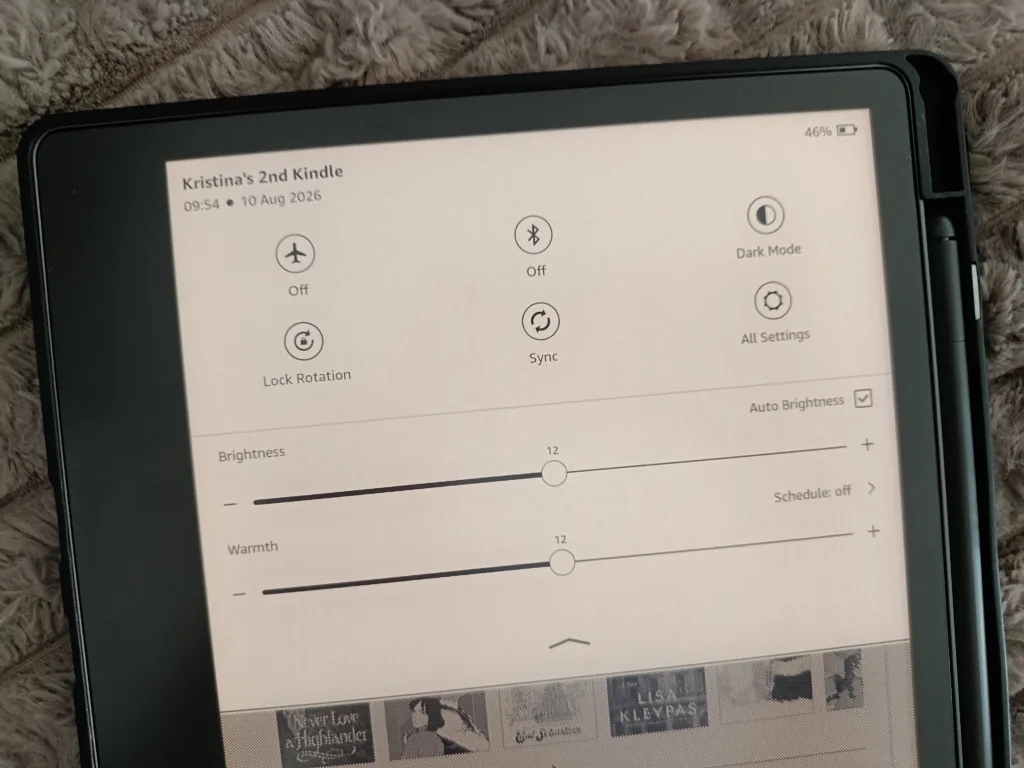
No Kindle has a built-in speaker (not even my Scribe). Every single model relies on Bluetooth to play any kind of audio at all.
However, Bluetooth support itself is now standard across the current lineup:
- Kindle (basic) — supports Bluetooth for audiobooks and VoiceView (Amazon’s screen-reader accessibility feature)
- Kindle Paperwhite (+ Signature Edition) — Bluetooth supported
- Kindle Colorsoft — Bluetooth supported
- Kindle Scribe (all tiers) — Bluetooth supported
So if you own any current-generation Kindle, you’re covered! You just need a pair of Bluetooth headphones or a speaker to actually hear anything.
Where this gets difficult is with older models. If you’ve had your Kindle for several years, Bluetooth support isn’t guaranteed . It became standard starting with the Paperwhite’s 10th generation and later, but plenty of older basic Kindles and Paperwhites predate that and simply can’t pair with anything.
If you’re not sure which generation you own, the fastest way to check is directly on the device: go to Settings, and if there’s a Bluetooth option listed at all, your Kindle supports it. No option means it doesn’t, regardless of what any spec sheet says about the model name.
How to Connect Bluetooth Headphones to Your E-Ink Kindle
Step 1: Open Settings and turn on Bluetooth
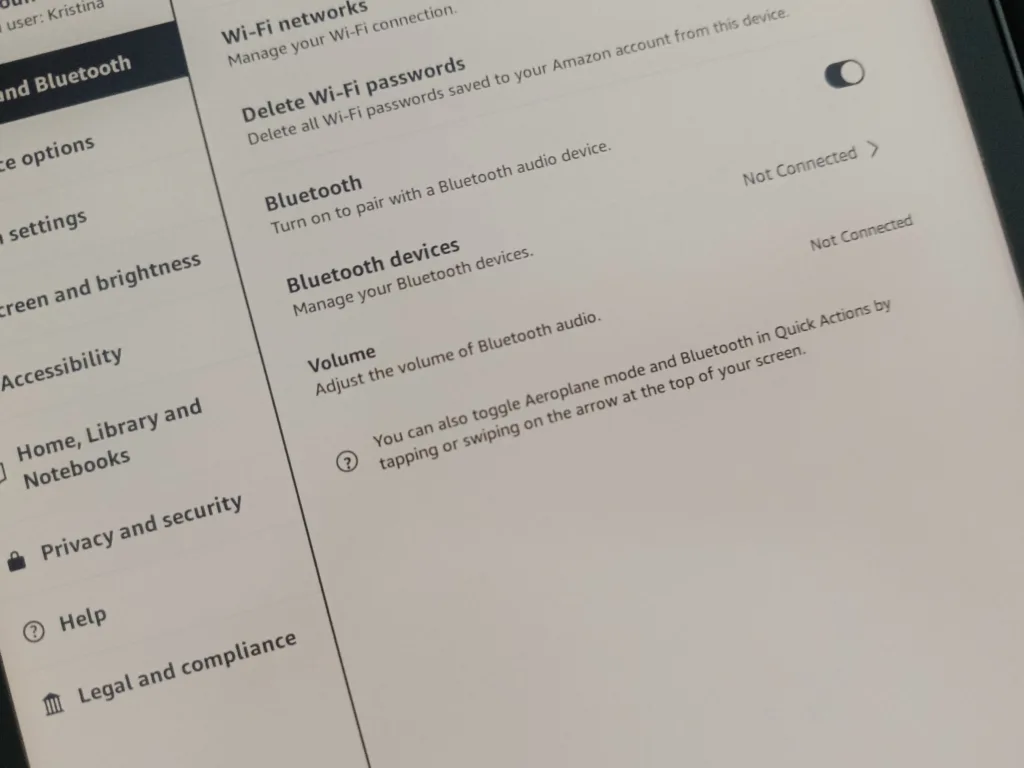
Swipe down from the top of your Kindle’s screen (or tap the small downward arrow at the top of your Home or Library screen) to open the Quick Actions panel. From there, tap All Settings, then select Wi-Fi & Bluetooth. Toggle the Bluetooth switch to on.
Step 2: Put your headphones or speaker into pairing mode
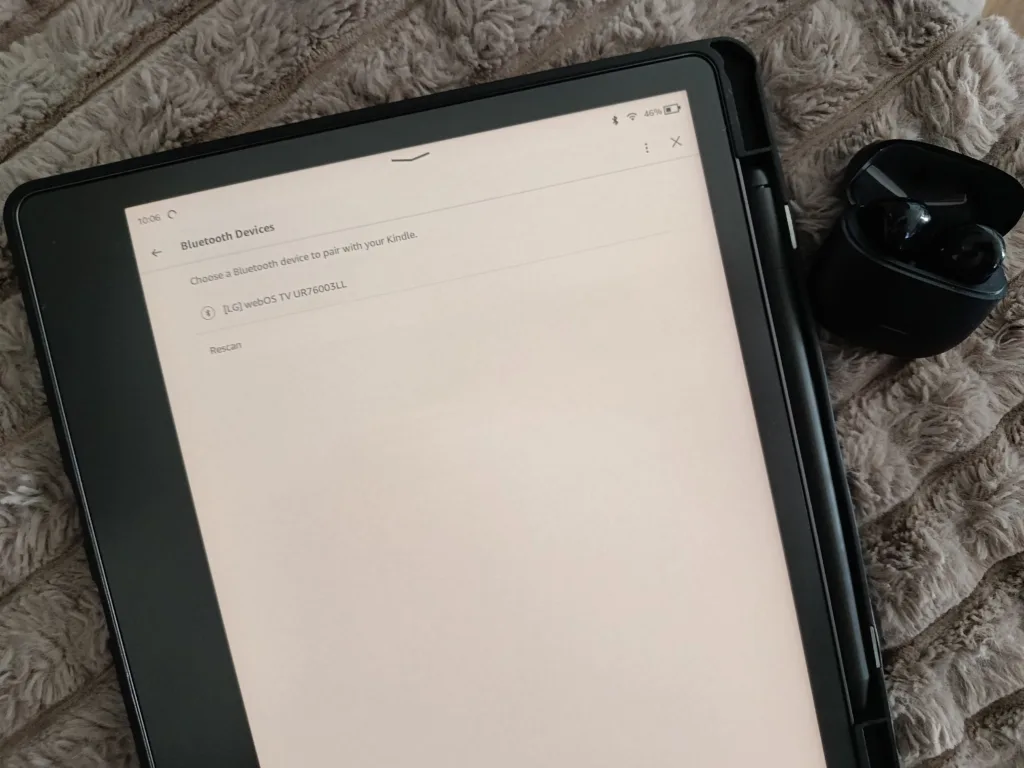
Turn on your Bluetooth headphones or speaker (yes, you can actually connect a speaker too!) and put it into pairing mode (usually a press-and-hold on the power button, but this varies by device). It needs to be actively broadcasting and within range of your Kindle for the next step to find it.
Step 3: Select your device from the list on your Kindle
Back in Wi-Fi & Bluetooth, tap Bluetooth Devices. Your Kindle will scan for anything nearby and list it by name. Tap your headphones or speaker once it appears. If it doesn’t show up after a few seconds, tap Rescan. This is a common hiccup and usually fixes it on the second try.
Step 4: Confirm the connection
Tap Connect. If your headphones display or require a PIN code, tap Confirm, then Yes on your Kindle to finish pairing. Once connected, your Kindle will show the device as paired, and you’re ready to play audio.
How to Play an Audiobook Once You’re Paired
Opening an audiobook from your library
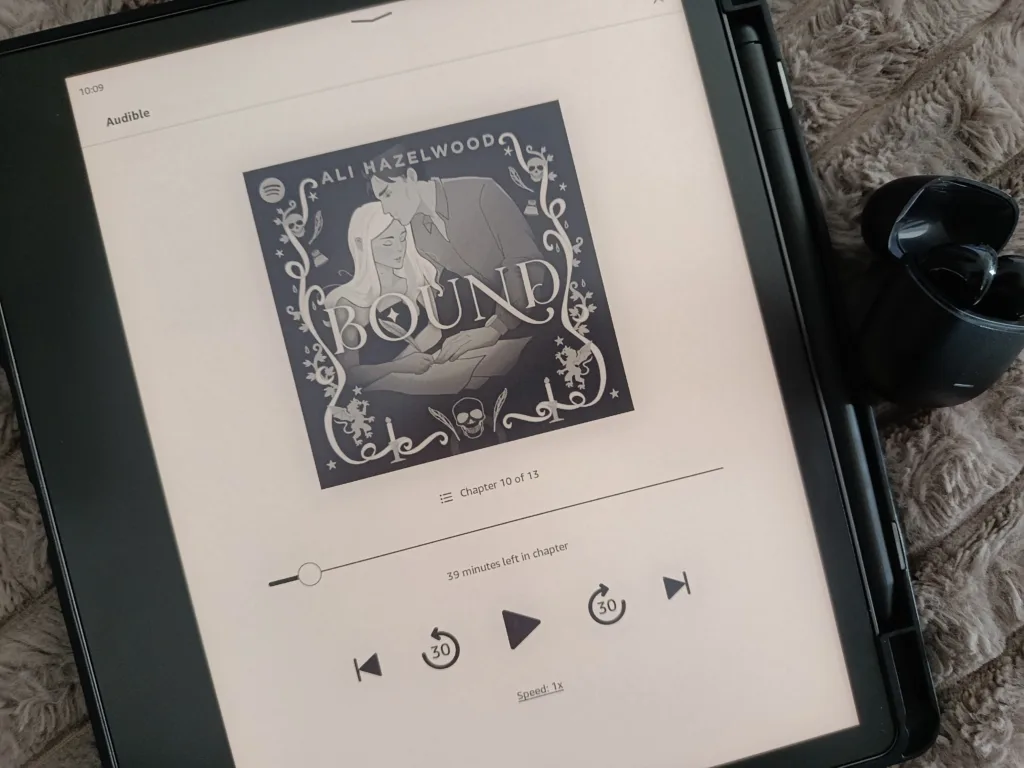
If you bought the audiobook directly through Audible, find it under the Library section, tap it, and hit the large play button to start. The first time you open a title, your Kindle needs to download the audio files, which can take a few minutes depending on the book’s length.
But you don’t have to wait for the full download to finish. Once it’s downloaded around 5%, you can start listening while the rest continues in the background.
If you’re using a Whispersync for Voice title (one where you already own or are reading the ebook), you don’t need to hunt for it separately. Open the ebook itself and switch to audio from there, which the next section covers.
Using playback controls (speed and skip)
The Audible player built into e-ink Kindles is simple, built for basic playback, not the full feature set you’d get in the Audible phone app. What you do get:
- A large play/pause button
- Skip back or forward by 30 seconds
- Jump to the next or previous chapter
- Adjustable playback speed
There’s no sleep timer on the device itself. If you’re hoping to fall asleep to an audiobook and have it stop automatically, that only works through the separate Audible app on your phone, not through Bluetooth playback on the Kindle.
Volume also isn’t controlled from the player screen itself. You’ll need to open the Quick Actions panel to adjust it, which trips people up the first time.
Switching a title between text and audio using Whispersync
While reading a Whispersync-enabled ebook, tap the top of the screen to bring up the toolbar, then tap the headphone icon. This switches you straight into the Audible player, picking up from exactly where you left off reading.
To switch back to reading, tap the Reading link in the bottom right corner of the Audible player screen, and you’ll land back on the same page in the ebook.
Switching this way, directly on the device, tends to be near-instant. If you instead use the separate Audible phone app to listen and then come back to your Kindle to read, the sync has to happen over the cloud, which can occasionally take a minute or two to catch up. So if you like moving fluidly between reading and listening throughout the day, doing it all on the Kindle itself is the smoother experience.
Listening on the Kindle App Instead (No Bluetooth Needed)
Your phone already has a speaker, so there’s no pairing step at all. All you have to do is open the app, tap play, and you’re done. The Kindle app also has direct Audible integration built right in, and its player is noticeably more full-featured than the one on an e-ink Kindle (and includes a sleep timer).
Where to find and play audiobooks in the app
Open the Kindle app and tap the book you want (if you don’t see it, pull down or tap the menu icon and hit Sync). If it’s a Whispersync-enabled title, you’ll see a highlighted prompt to download the matching audiobook. Tap it, then tap the play icon once it’s ready.
From the Audible player screen, tapping in gives you access to narration speed, the sleep timer, and a button to jump straight back to the text version without losing your place.
Troubleshooting
Headphones won’t pair or keep disconnecting
Start with the basics: make sure your headphones are actually in pairing mode and within close range. If your Kindle isn’t finding them, back out to the Bluetooth Devices screen and hit Rescan. This alone fixes it more often than you’d expect. If they pair but keep dropping, try restarting both devices, and check that your Kindle’s software is up to date, since outdated firmware is a common cause of flaky Bluetooth behavior. If a device was previously paired and is now causing issues, using Forget to remove it and pairing fresh often resolves lingering conflicts.
Audiobook won’t play or is grayed out
This almost always comes down to ownership. A grayed-out play button usually means you don’t actually own the audiobook version of that title; either it wasn’t included in your Kindle Unlimited borrow, or you own the ebook but never purchased or redeemed a credit for the matching audiobook. Double-check the listing for the headphone icon before assuming something’s broken on your end.
Audio is out of sync with your reading progress
If you’ve been switching between the e-ink Kindle and the phone app, a short sync delay is normal. It can take a minute or two for your furthest position to catch up across the cloud. If it seems properly stuck rather than just delayed, manually syncing (usually a pull-down or sync option in your library) will typically resolve it. Switching directly between text and audio on the same device using the headphone icon is far less prone to this than jumping between two separate apps.
Does the basic Kindle support audiobooks?
Yes, current basic Kindle models support Bluetooth for audiobook playback, the same as the Paperwhite and Scribe. Older basic Kindles from before 2016 don’t have Bluetooth at all, so audiobook listening isn’t possible on those.
Do I need Audible to listen on Kindle?
For real, professionally narrated audiobooks, yes, Audible is the underlying service, whether you buy a title outright, use an Audible subscription credit, or access one through Kindle Unlimited’s included audiobook titles. If you just want any ebook read aloud in a computer-generated voice, Kindle’s Assistive Reader (text-to-speech) feature works without Audible at all, though it’s a very different listening experience.
Can I listen to audiobooks without headphones?
On an e-ink Kindle, no, there’s no built-in speaker, so you need some kind of Bluetooth output paired to the device, whether that’s headphones or a Bluetooth speaker. On the Kindle phone app, yes, since your phone has its own speaker and no pairing is required.
Enjoyed this article? Join my newsletter!
Every week, you’ll receive one email from me with:
✓ what I read this week
✓ book recommendations that don’t show up on the blog
✓ behind-the-scenes of Bookish Delights
✓ personal stories
✓ upcoming articles
✓ … and more!

Personally I think this is where I find the Kindles lacking. I listen to audiobooks 99% of the time and almost all day long. It allows me to to so while carpooling kids. But I have tried a lot of times to listen on the kindle and there are always issues.
True, there are usually some issues. I wish it was simpler/easier to use or at least less glitchy, but at least there’s an option in case someone wants it. Do you use your phone or something else?